Change an account’s identity
Last updated: July 21, 2026
When you change an account’s identity in Kernel, the app automatically starts a background process to keep the account’s data consistent across systems.
How to change an identity
When in the Accounts Explore page you can update the identity of the account so that it better represents any account. This is for cases where you believe the match should be something else.
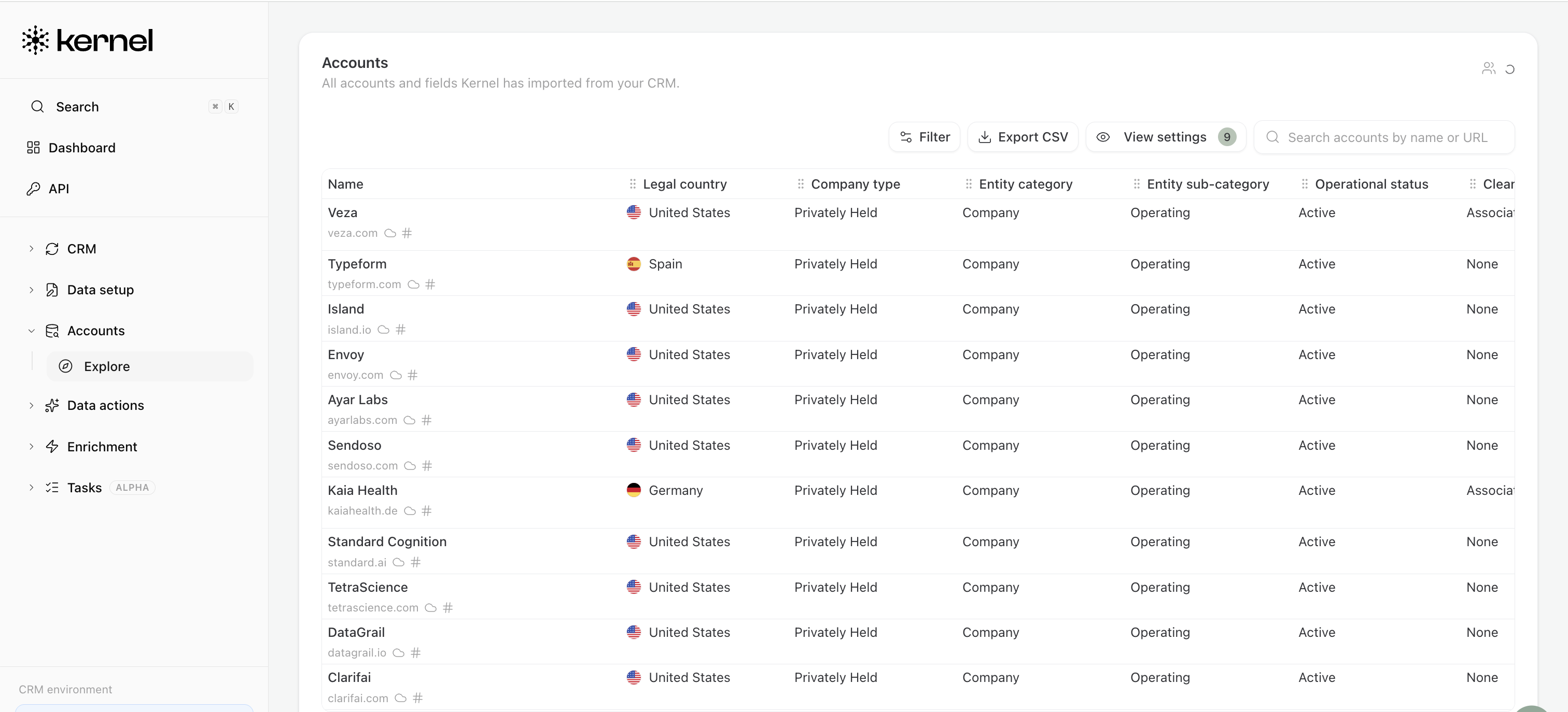
For any account, click to open the side panel. Then select the 'Change Identity' button. From here you can search across accounts and change the identity of this account in Kernel. This will remap the KERN ID that is associated to this record.
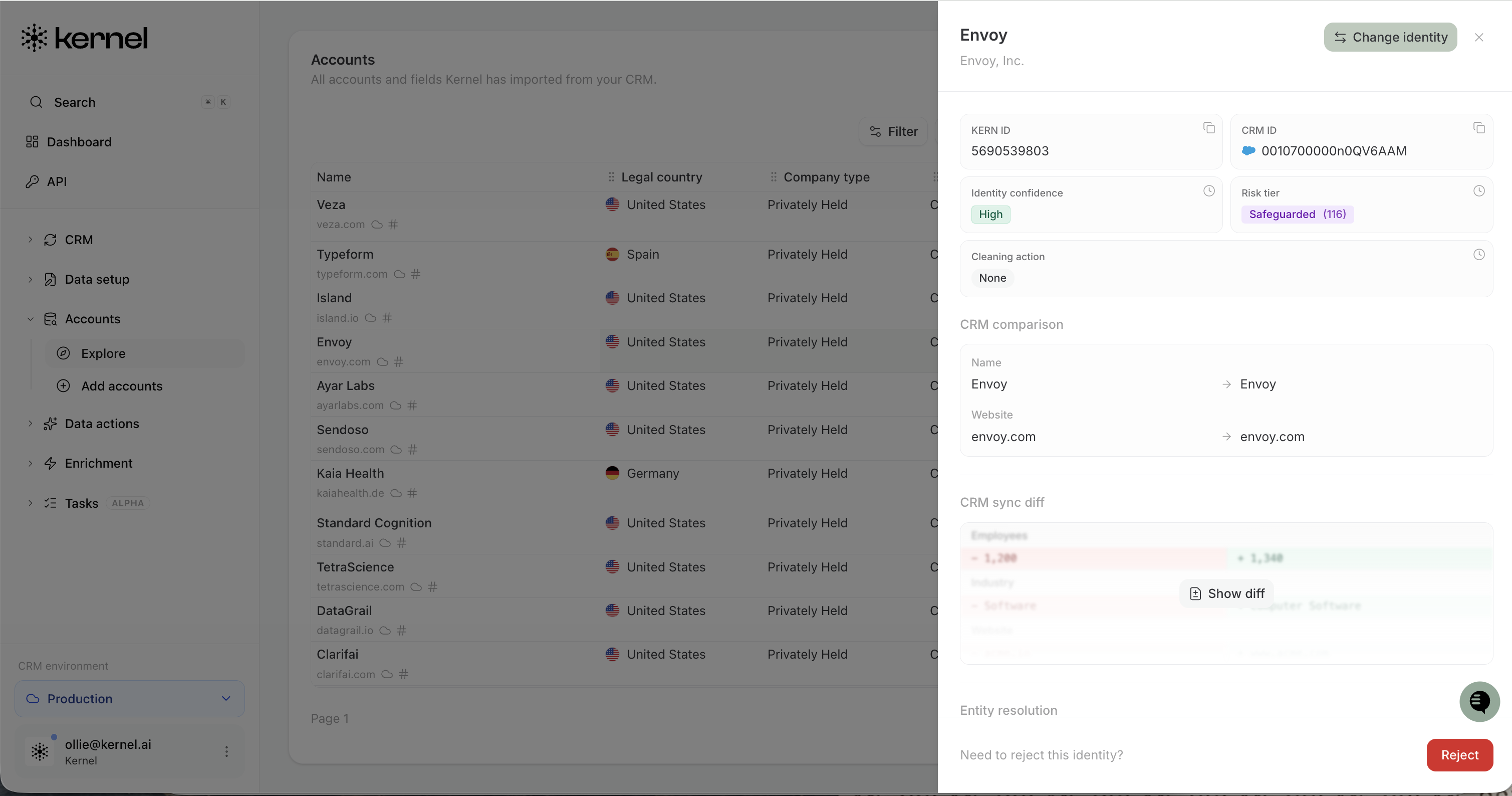
What happens when you change an account identity?
After an account identity is updated, Kernel will automatically:
Kick off the cleaning agent for that account.
Recalculate the recommended cleaning action.
Push the updated account information to the connected CRM.
Where can I see the status?
You can track the status of the identity change operation from the accounts table in the app. The table will show whether the operation is still running, completed, or needs attention.
Why this matters
This flow helps ensure that account identity changes are reflected consistently across Kernel and your CRM without requiring manual follow-up steps.
Troubleshooting
If the accounts table shows that the operation failed or needs attention, review the account details and retry the identity change if appropriate. If the issue persists, contact your support team with the affected account name and the status shown in the accounts table.